

The front of I AM Transformation has changed. When you introduce a coach, teacher or creator to IAT, they can now see how a community, an offer, a funnel and follow-up fit together before they decide where to begin.
There are useful additions inside your account too. You can bring conversations and community activity together, keep private notes while you learn, find creator tools more easily and turn reviewed ideas into drafts you can actually work with.
This update follows our October 20 post. That post covered the new how-to course, weekly gatherings and several access and account improvements. Here, I want to walk you through what has changed since then and help you choose something useful to try.
A clearer introduction for the people you invite
The new IAT homepage explains the platform around four connected parts. A visitor can follow the whole journey, or go straight to the part that matters to them.
Community gives people a place to take part through posts, messages and live sessions.
Offer gives them a way to go deeper through a course, workshop or paid community.
Funnel helps a visitor move from a page to a signup or purchase.
Follow-up brings contacts and email into the ongoing relationship.
This is useful when someone asks what IAT actually does. Instead of describing a long list of tools, you can show how the pieces support the work of teaching and building a community. The page includes a platform tour, a link to a live community and a separate “See how it works” tour.
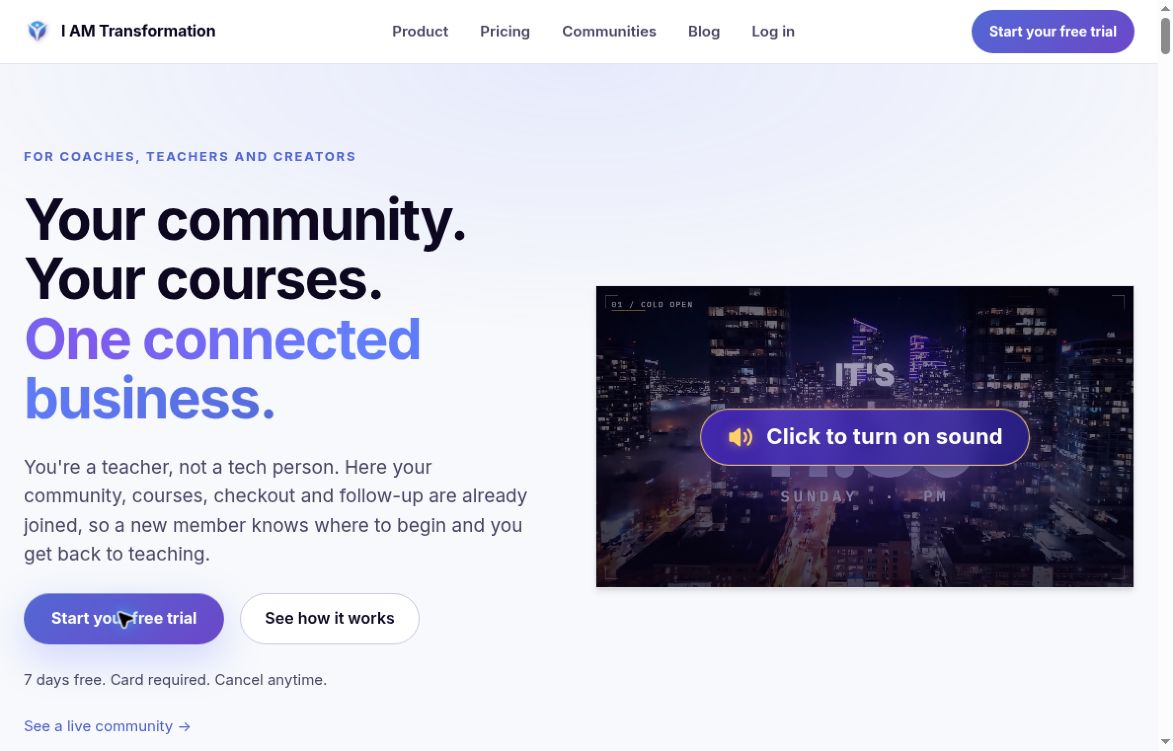
The new public homepage introduces IAT and gives visitors a choice to watch, explore or start a trial.
The guided tour, “Maria's first week inside,” uses a demo to show the experience. It is an example, not a real member account or a promise of anyone's results. If you are explaining IAT to someone new, invite them to watch and then ask which part they would use first.
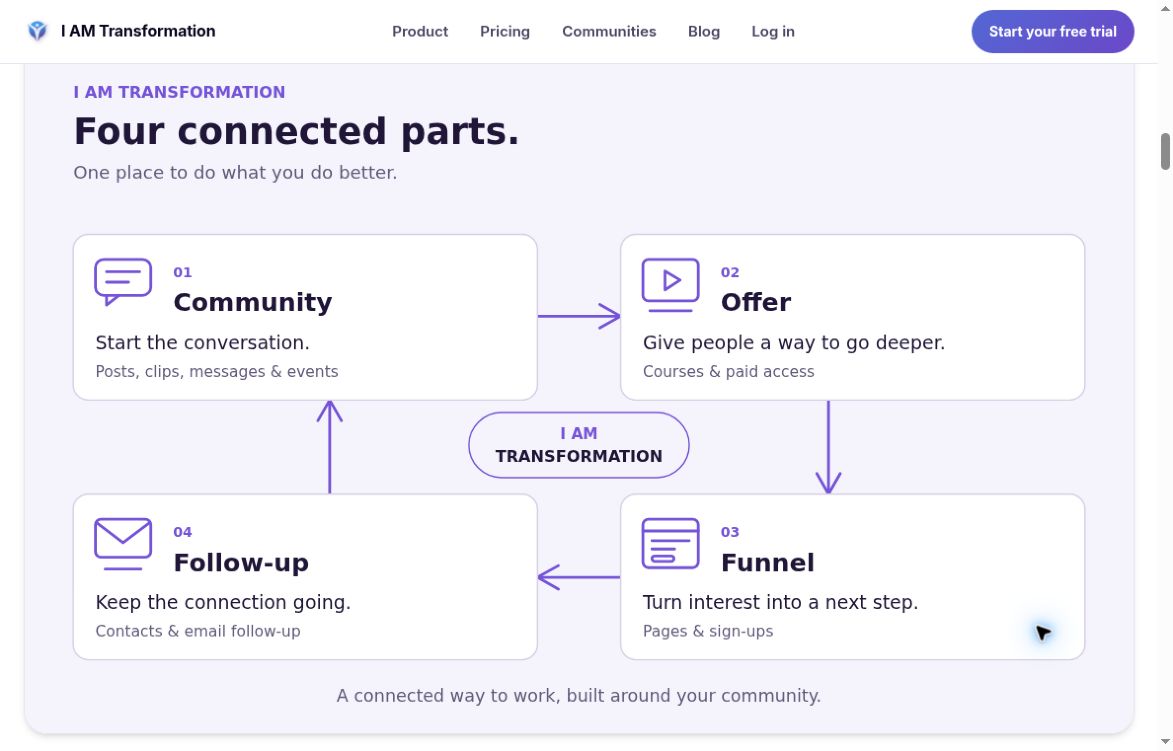
Community, Offer, Funnel and Follow-up explain the connected journey on the public website.
A new front page for sharing IAT as an affiliate
For members who choose to share IAT, this new introduction gives your invitation somewhere more helpful to land. The public journey carries a referral link through to the creator trial entry, so the visitor can explore the platform and take the next step from that page.
If you already have affiliate access, open Affiliate Tools, find Share links and copy your Front site link. This is your personal link to the main IAT homepage. Keep the whole address intact rather than copying another member's referral address or sending an untagged homepage link.
Open your own referral link in a separate browser window and check the page your visitor will see.
Watch the introduction or open “See how it works” so you know what you are inviting someone to explore.
Share it with a short explanation of why IAT may be relevant to that person. Let them make their own decision.
The affiliate program is optional, and access and current program terms still apply. Sharing a link does not guarantee a purchase, a commission or an income. The public trial offer says seven days free, a card is required and you can cancel. Visitors should review the current pricing and terms before completing signup. The current public creator offer is I AM Transformation Pro; existing subscribers should check their own billing rather than assume their plan has changed.
This platform invitation is separate from the member-referral option that an eligible paid community owner may enable for that community. Check which program and destination your link belongs to.
Bring personal activity together in your inbox
The creator Inbox now brings together more of the activity you may want to return to: personal direct messages, accepted group conversations, and community mentions and replies. You can also review personal message requests and see upcoming bookings you host.
Open Inbox from your creator home. Start with Unread when you want to catch up, or choose All recent to revisit activity you have already read. A community notification you mark read leaves the unread view but remains marked as read in the recent view, so catching up does not mean losing the route back.
For community mentions and replies, you can mark an item read without leaving the inbox. If you want the conversation itself, use its link to open the native message or post. Pending message requests have their own review controls, so you can choose whether to accept or decline rather than treating every request as an existing conversation.
Search helps you narrow the conversations and notices that are already loaded. It is not a search through every historical message or all message text. Use the older-item loading controls when you need more history, then search the expanded results. Loading errors have their own retry states rather than quietly looking like an empty inbox.
The bookings panel shows your next ten pending or confirmed appointments as host, with read-only details. This remains your personal attention view, not a shared team support queue.
See your next CRM follow up and open deal
CRM now has personal workspaces beyond the small dashboard previews. Open My follow-ups to filter your assigned tasks by status and due dates, page through the list and open the related contact. Start task and Mark complete let you record progress as you work. Date filters use your local time.
Use Priority leads for your assigned active contacts with a score of at least 70 in an open sales status. This is a score-based list, not a queue of everyone who was recently active. My open deals gives you a paged view of your own open deals, with stage, value and expected close date.
Inside a contact, Edit work details lets an authorized user save Company and Job title. The Email tab shows recent direct CRM email history you own, with subjects, status and open or click counts, rather than complete message bodies. Community Activity cards have links back to an available post or community. Existing access rules still apply.
Quick send has clearer product, course and coupon selections. CRM admins can create contact tags, and New deal can begin with the contact already selected. These controls do not change consent or the rules for contacting someone.
Call-note drafts are now kept with the relevant account and contact. If a save cannot be confirmed, keep the draft and use Read recent calls to inspect saved activity instead of repeatedly resubmitting it. This improves note recovery; it is not a new calling service.
Start with My follow-ups, Priority leads or My open deals. Existing access and communication rules still apply.
Keep your own notes beside a lesson
When a lesson gives you an idea you want to return to, you can now save a private personal note in the lesson view. These notes are separate from community posts and comments. They are a place to put your own understanding into words while the lesson is still fresh.
Open a lesson you can currently access and find My lesson notes.
Write in Your note and choose Save note. Return to the lesson to reopen or revise it.
In My course notebook, choose Open course notebook. Use Search loaded notes, Load more lessons and a note's lesson link to find your way back.
The notebook shows your own notes for lessons you can currently view. It does not give you access to a lesson that your account no longer has permission to open. If you have a lot of notes, load another batch before assuming a search covers the whole notebook.
Use Delete note when you want to remove a saved note, then confirm. If two versions conflict, review the difference before replacing anything. A simple place to start is one sentence about what you learned and one action you want to take.
Course video progress saving has been repaired. Creators can also edit saved module descriptions. Reviewed outlines or plain text from your own assistant can enter the course-building workflow, and a reviewed single-choice quiz question can prefill its existing form before you save. Course Archive now uses the right name: it keeps content, enrollments and learner progress rather than pretending to permanently delete them.
Find your creator tools with less searching
Creators can choose a Simple home for everyday community work and switch to Studio for additional management tools. Opened tools can stay available in Simple, and your preferences are kept for the creator and community you are working in.
Use Find a creator tool, or press Cmd+K on a Mac or Ctrl+K on Windows, to search the tools available in your current navigation. The finder can also bring back up to five recent tools. It follows the permissions and mode you already have, so it does not unlock a feature or run an action just because you find its name.
This is particularly helpful when you know what you want to do but cannot remember where it lives. Search for the task, open the existing tool and continue there. You can also search the communities already loaded in the community switcher when moving between your communities.
Turn a Fast Start plan into drafts you can review
Fast Start now gives creators more practical ways to move from a plan to working content. You can plan manually or work with your own AI assistant, review the community brief and save it so you can resume later. You do not have to accept generated suggestions to use the planning flow.
Within the brief, you can add, edit or remove starter posts and course ideas. A manual brief can begin empty. Editing that plan does not quietly create a course or publish a post; you decide when an idea is ready for a separate draft.
The draft handoffs let you take selected starter posts into community drafts, turn a reviewed course idea into an unpublished course draft, or save a reviewed invitation as an inactive email template. An approved welcome can also become a community post draft after you choose the community and review the text.
Try finishing one welcome message and saving that single draft in the right community. Check its wording and audience there before publishing.
The AI route uses your own assistant rather than promising a bundled supply of IAT-generated content. Review imported suggestions as your own work. Saving a brief or template does not send invitations, activate an email sequence, publish content or complete the launch of a community.
Review email content before you use it
In your email tools, open Templates to preview saved templates at phone and desktop widths, make a separate inactive draft copy of an authorized template and edit your personal template's plain-text alternative without replacing its HTML.
Under Sequences, saved emails and their stored variants can also be inspected in phone and desktop previews. For sequences that are Draft or Paused, you can edit the name and description, review the step order and save a revised order. You can also edit a saved email step's base subject and plain-text content while keeping its HTML, variants and timing in place.
Those distinctions matter. A plain-text edit is not a rewrite of the HTML email. Review the version you intend to use, especially if the two formats have different wording. Active and archived sequences remain protected from these draft-editing controls.
Saved audiences have a review-and-revise path too. You can inspect an audience's saved rules and create a separate revised audience while keeping the original and its campaign references. A displayed match count reflects the last evaluation. It is not a count of people who have consented to receive an email or a guarantee that delivery is possible.
The linear automation editor's Save control also now saves the displayed step edits. Keep the page open while working: these edits are not durable drafts that follow you between tabs or devices. Saving is separate from activation, enrollment and delivery. Use the preparation tools to review one clear message for the right audience before any sending step.
Give community staff a private place to work
In your community's creator navigation, open Private spaces. Owners can choose Create private space for a staff text discussion. Only that community's owner, admins and moderators can read and post there; these are not open member spaces.
Use Edit space details to change the name and description without replacing the space, its posts or its audience. This does not invite someone into a staff role. Check that you are posting in the intended space before writing a staff-only message.
Build products and preview a saved funnel
Product creation and deletion have received practical repairs. Optional SKU guidance is clearer, Course products let you select the course being sold, and deleted products stop returning in All while order history is preserved. Unsupported Event and Bundle creation choices have been removed rather than presented as working setup paths. Generic edits cannot turn an existing product into one of those specialized types.
In the funnel builder, Save & preview saves first. Allowed video players can play in preview, while forms and calendars stay inactive. The product picker loads the selected funnel community's products and offers retry or a creation link when needed. Template handling and payout-split validation are clearer too. Supported native blocks also have left and right padding controls; this is not a replacement page builder or complete responsive redesign.
Collect a testimonial and review it before sharing
In Creator Studio → Testimonials, choose your community, enable public collection and copy its submission link. A signed-out visitor can submit a text testimonial and rating with consent. It enters pending moderation for you to review before approving it for public use.
You can prepare responsive grid, single-testimonial or carousel embeds, choose light or dark presentation and inspect a preview before copying the iframe to another website. Optional photos depend on the configured storage service; a text-only submission remains useful without a photo. Check an embed on the destination site rather than assuming every host and provider combination will behave identically.
Return to posts and manage your community feed
The saved-posts page helps you reopen readable posts among your 20 most recent bookmarks. You can change the category of your own published community post, and hide or mute choices wait for confirmation before the feed changes. A confirmed author mute has an Undo option.
Feed ordering better respects your saved preference, blog cover images follow their posts into the feed and comment presentation has been repaired. Click the thumbs-up count beside a nested comment to inspect its permitted reaction list. Clips linked to feed posts have a similar roster, separate from the reaction toggle. Clip comment controls and current-account photos have received attention too.
Community join questions now support Email address answers and stable single-choice responses. An answer is not verified identity or marketing consent. Use it to understand a joining member rather than treating it as permission to email.
Archived or suspended communities are shown as closed and leave discovery listings. Public-page setup links now open the relevant Bio, Store or Blog, while profile and bio links have been repaired. Studio also focuses its community selector on communities you own or currently co-manage, with revenue labeled for the selected community.
Clearer live booking support and reporting details
Scheduled live rooms now explain that chat and questions open when the broadcast starts. Chat loads as the session goes live, and a refusal shows its reason. Hosts receive bell notifications for booking requests, bookings, reschedules and cancellations, with links to the booking. Check its time zone and current status when opening it.
Support tickets have repaired close, resolve and reopen controls, including reopening your own ticket. An idle ticket may close after seven days following a staff reply, with a visible reopening note. In-progress and escalated cases, and pending affiliate-access requests, are excluded from that idle-close path.
Analytics has separate loading failures and retries rather than freezing the whole page. Subscription renewals are included in revenue, date selection includes the full selected end day and funnel rows can open the builder. Reporting still has boundaries; these changes are not a claim that every payment type and refund is reconciled in every chart.
Choose a useful next step
If you share IAT, walk through the new front page using your own referral link. If you are here to learn, save one lesson note and find it again in your notebook. If you run a community, catch up in Inbox or turn one Fast Start idea into a draft.
Choose the part that supports what you are working on now. The how-to course is still a useful platform walkthrough. Take one step in your account and bring your questions back to the I AM Transformation community.