


Stop spending your best hours fighting your tools.
If you teach, coach or create, you know how this goes. You sit down to serve your people, and an hour later you are still wrestling with a page, hunting for a setting, or wondering which of your students has quietly gone missing. It is easy to start believing the problem is you: that you are not technical enough, or that a real business needs a team you do not have.
You can release that story. The problem was never you. Too many of the jobs in your business took too many steps.
So that is what we worked on in this update. Below, I walk through what changed, why it matters for you and the people you serve, and exactly how to use it.
Give buyers more ways to say yes
Let buyers choose the extras that fit their needs, rather than asking everyone to take the same bundle.
Up to three add-ons at checkout. Each order bump has its own checkbox, so a buyer can take the workbook, skip the coaching call and still feel good about the decision. Nobody has to accept a bundle to get the one thing they came for.
How to use it:
Open your funnel, choose Connections, and open the Offer tab.
Choose a product in Order bump. The Add another order bump button then appears; use it up to twice for three bumps in total. Choose each product and save your offer bindings when you are ready.
Make each product's purpose clear in the buyer's words: what it helps them do.
Run through your checkout once to see how the choices read.
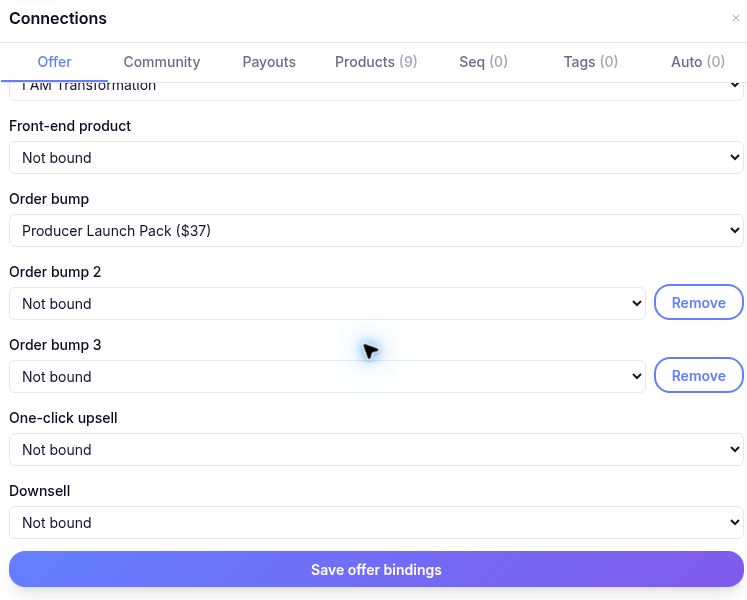
Choose your first order bump to reveal the option to add two more. Shown in a private draft; no offer bindings were saved during this check.
Coupon codes on funnel checkouts. Where a compatible discount code has been configured for a funnel checkout, buyers can enter it at checkout. Community membership coupons are a separate system; do not assume they apply to funnel products.
Try this: confirm that your code is valid for the exact checkout before sharing it. A creator-facing setup path for native funnel discounts was not verified in this check.
Build a page that feels like your whole business
Your visitors should not have to click around five places to understand who you are. Now one page can show it all.
New blocks that pull in your real work. Show your latest blog posts, store products, booking calendar and proof from your community right on the page. You stop retyping what you have already made.
More ready-made pieces. You can now add these without a designer:
Comparison tables and tabs, to answer questions before they are asked
Numbered steps, to show people the path ahead
Image galleries and audio players
Callout boxes and social links
Countdown timers, for real deadlines only
A monthly and yearly toggle for your pricing table
One site menu and footer. Your funnel pages can now share them, and the menu collapses neatly on phones. Your pages start to feel like one home instead of a stack of separate links.
Look and feel presets. Pick a preset in your funnel settings to set the style of your pages in one move, rather than adjusting each one.
How to use it:
Start with an unpublished test funnel. Open Settings and review the Look and feel presets before choosing one.
Add one block that shows real work, such as your latest posts or your booking calendar.
Preview your page blocks on mobile before publishing. Important: Look and feel and shared menu/footer settings save immediately and can change already-published pages; they are not held as draft-only changes.
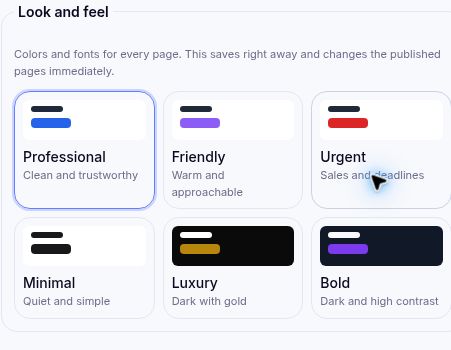
Six presets live in Funnel Settings. Read the immediate-save warning before changing a published funnel.
Launch from one conversation
Launching can feel like a mountain because every step lives somewhere different. Here is what changes when your AI assistant is connected to your account.
A one-chat launch playbook. A step-by-step playbook walks you and your AI assistant through a launch in a single conversation. You make the decisions, and it keeps track of what comes next.
A lead-magnet PDF guide. Your AI drafts a free guide for your audience. Nothing goes out until you have reviewed and published it, so it always sounds like you.
A "Make today" list. Your creator home now suggests four small things to put in front of your audience today, and gives you a new list tomorrow. That blank-page feeling gets a lot smaller.
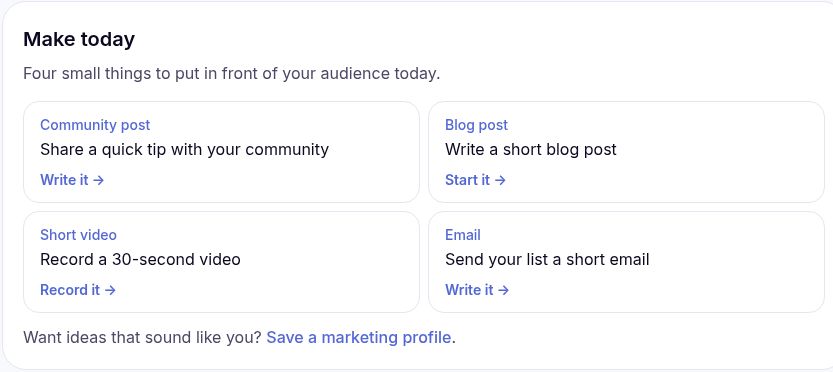
Four small starting points on your creator home. Choose one rather than trying to do everything.
One Creator hub. Your profile, bio page, blog, store and domains now live in one place.
How to use it:
Open Creator Studio, then Creator hub in its Creator Tools sidebar. Check that your profile and bio page are current.
Open your creator home (Your communities) and pick one idea from Make today. Blog post → Start it opens a new draft; it does not publish it.
Ask your connected AI assistant to draft a guide for the one problem your audience asks about most, then read every word before you publish it.
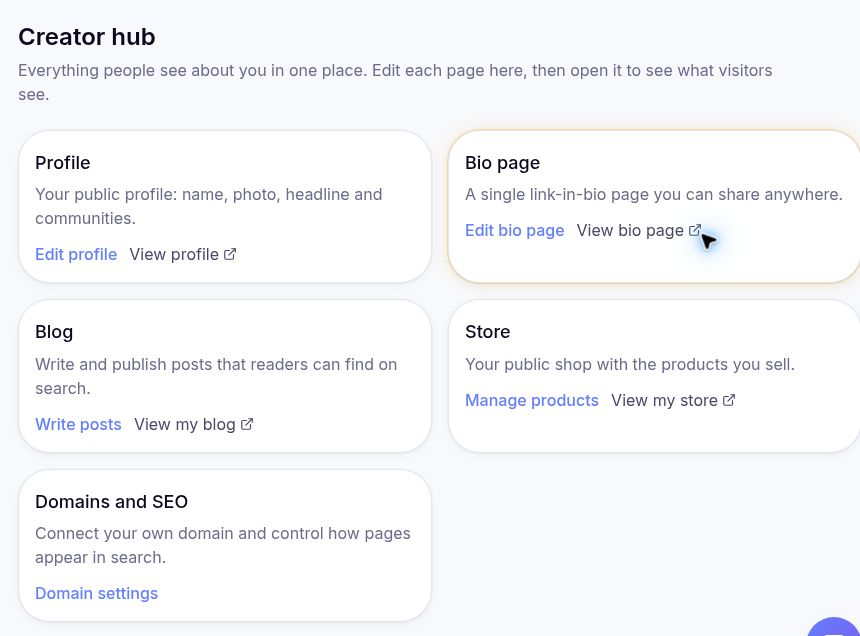
Creator Studio → Creator hub brings your public-facing pages together.
Help your students actually finish
You did not build a course to watch people drift away from it. The new tools help your students find what they need, and help you notice who needs you.
Searchable lesson captions. A student remembers you explaining something but cannot remember where. Now they can type a word into Search transcript and jump straight to that passage, instead of scrubbing through an hour of video.
Easier live captions. Captions in live sessions are easier to find, and viewers can change the text size, so more of your people can follow along comfortably.
See who has gone quiet. You can now see learners without recent course progress. That gives you the chance to send a kind note while it can still help.
Short-answer quiz questions. Ask students to explain an idea in their own words. It tells you far more than a multiple-choice click.
Chapters and blog posts from your replays. Open a replay, choose Add chapters, then Suggest from captions to review proposed timestamps and titles before saving. For a blog draft, the replay's AI instructions use notes you choose to provide separately; the panel does not automatically fetch or share captions with your assistant. One teaching session can keep serving people long after it ends.
How to use it:
Open Creator Studio → Courses, edit your course, and choose Analytics → Learners to check in with. Set the number of days and select Show learners. This measures no recent lesson completions, not visits; review the context before sending a personal note.
Add one short-answer question to the lesson your students find hardest.
On your latest replay, ask for suggested chapters and tidy the titles.
Spend less time chasing attendance
Every missed session used to mean more back-and-forth for you. These changes take some of that off your plate.
Google Calendar export. Community members can add an event to their own Google Calendar from the event page, so your gathering is on the calendar they already check.
Booking attendance and rebooking links. See recorded booking attendance and your all-time recorded show rate in Scheduling → Bookings. If someone missed, send them a safe rebooking link so they can pick a new time.
Webinar registrant export. Choose Export CSV to download your webinar registrants when you need the list.
Try this: when you announce your next event, remind members they can add it to their calendar from the event page.
See what is working
You should not need an analyst to know where to put your energy.
Search Console connection status. The SEO Dashboard includes a Google Search Console panel. In our live check, it reported that Search Console is not configured for this platform yet, so search-performance reports are not currently available there.
Analytics pages that explain themselves. Your reports now tell you what each one shows, so you can read the number and decide what to do next.
Try this: open the SEO Dashboard and check your connection status. Once Search Console is configured and connected to your verified site, use the available search data to inform your next post.
Who this is really for
All of this has one purpose: helping you move from managing tools to serving people. We are creators too. We know the work you want to be doing is the teaching, the conversations and the moments when someone's life starts to change.
Choose one next step
Please do not try all of this today. Pick the one line that fits where you are:
If you sell something: add one order bump to your main funnel.
If you teach a course: send one note to a learner who has gone quiet.
If you host live: ask for suggested chapters on your latest replay.
If you are just getting started: open your creator home and do one thing from your Make today list.
Then bring your questions, and what you build, to the I AM Transformation community. We read every post, and your feedback shapes what we build next.