
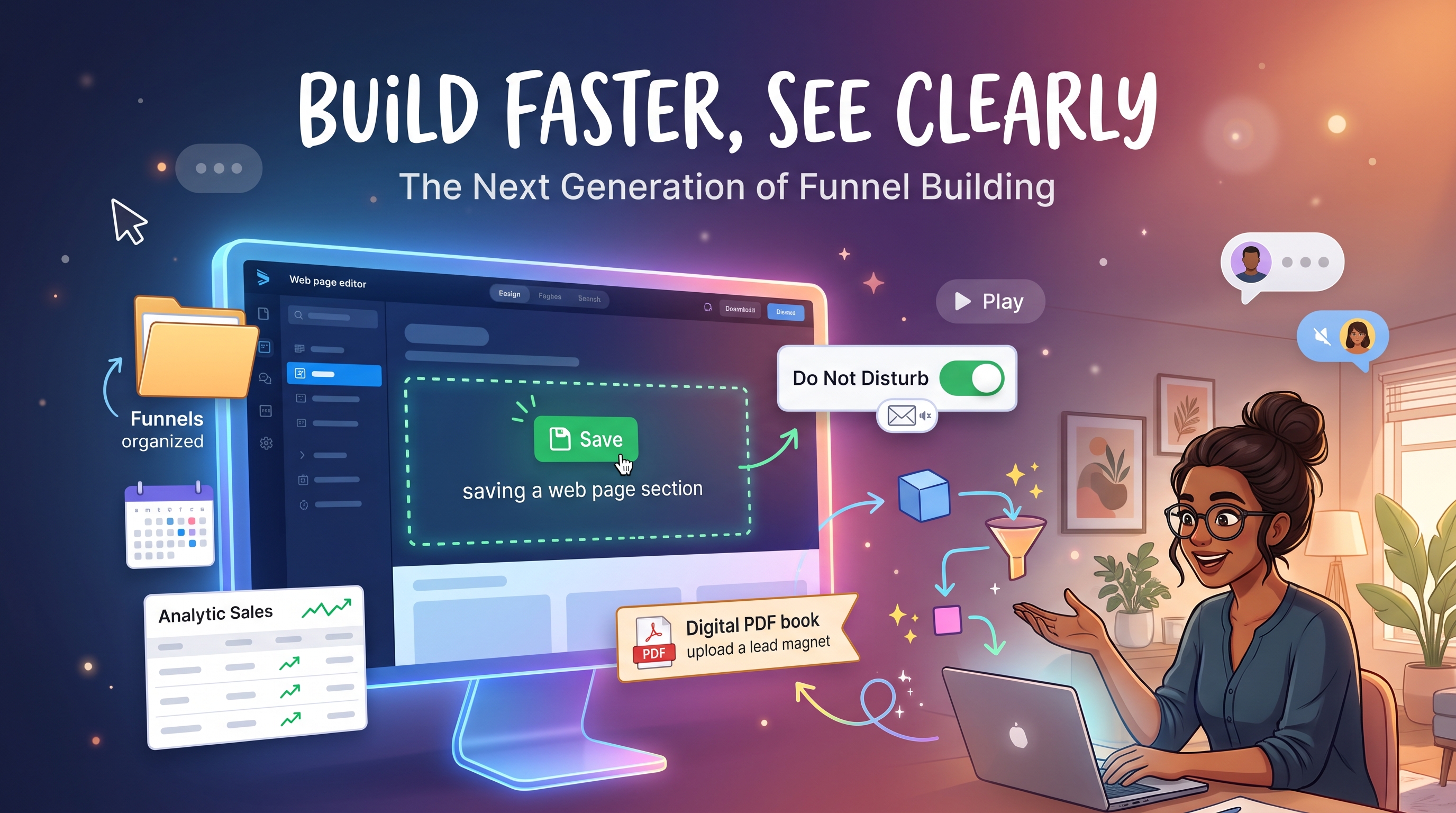
Stop rebuilding the same page section for the fifth time, and stop guessing which funnel actually sold.
Most creators know this feeling. You have a section that works, a page that converts, people who trust you, and yet the tools keep asking you to start from scratch, fight with settings to make a page look right, dig for numbers, or send one more email to someone who asked for quiet. It is easy to think that is just the price of running your own business, or that a polished page needs a designer. You can release that. This update is about building faster, making pages that look like you, seeing clearly, and treating every person on your list with respect.
Below is what is new, why it matters to the people you serve, and exactly how to use each piece.
Build funnel pages faster

Buttons that do exactly what you mean. Every button can now go to the next step, jump to a specific step, open a web address (in a new tab if you like), scroll smoothly to any block on the page, call a phone number, start an email, or open a pop-up. Visitors who prefer reduced motion get an instant jump instead of a scroll.
How to use it:
Open your funnel and click a button on the page.
In the property panel, open When clicked and choose the action.
Pick the step, block or pop-up from the list, or type the address, phone number or email.
Preview the page and click the button once yourself.
Saved sections. Save a section you are proud of and drop a copy into any of your pages. Text, headlines, layout, buttons, images, video, forms, FAQs, benefits, steps, numbers and callouts can all be saved. A saved form becomes a new form on the new page, so submissions go to the right place. Checkout, pricing and product blocks stay out, because they belong to one product and price.
How to use it:
In the funnel editor, open Tools > Saved sections.
Select a section on your page, give it a name and save it.
On any other page, open the same panel and click Add to page. A copy is added at the end of the page.
Move it where you want it. The copy is not linked, so editing or deleting the saved section never changes a page that already uses it.
A contact button in the corner of your pages. Some visitors are not ready to buy or sign up, but they do have a question. Now they can ask it without leaving the page. A small button sits in the corner of your published pages and opens a short form. Their message lands on their contact in your CRM, on the contact's activity, so you can reply personally. It is not a live chat, so you never have to be online to catch someone.
How to use it:
Open your funnel, go to the Settings tab and find Floating contact button.
Tick Show the button on my published pages.
Write a Button label (the default is "Questions? Message us"). On a phone only the icon shows.
Under Form to open, choose the Built-in contact form (name, email, phone, message) or one of your funnel's own forms.
Choose the Position (Bottom right or Bottom left) and click Save contact button.
The built-in form never ticks the email permission box for your visitor. It adds them as a contact and does not join them to a community, webinar or email sequence, so a question never turns into a subscription they did not ask for.
Booking calendars, maps and forms inside your pages. Custom HTML blocks now accept embeds from Calendly, Google Maps, Typeform, Google Forms, JotForm, Tidy Cal and Cal.com. They are rebuilt safely, so they work without opening your page to risky code.
How to use it: copy the embed code from the service, add a Custom HTML block to your page, paste it in, and check it in preview.
Tracking code, pixels and your favicon. Your funnel settings now have a Tracking code and favicon card with head code, body code and a favicon. A status line tells you exactly where your code runs, and the publish dialog warns you if it will not run yet. Ad pixels now cover Meta, Google, TikTok, Pinterest, LinkedIn, Snap, Reddit and Microsoft Clarity. You only enter the ID; each one is checked, and pixels load only after a visitor agrees to cookies.
How to use it:
Open your funnel, go to the Settings tab and find Tracking code and favicon.
Paste your code or upload a favicon, then read the status line under it.
Add your pixel IDs in the tracking fields. Each field tells you the format it expects.
Remember: your head and body code, and the Pinterest, LinkedIn, Snap, Reddit and Clarity trackers, run on your own subdomain or custom domain, not on the main iamtransformation.com address. Meta, Google and TikTok are moving to your own site too, and the editor shows a notice about it. If the status says "Not running", set up your site address first.
Help search engines understand your offer. Published funnel pages now describe themselves to search engines, including your product, price and availability on checkout pages. It is on by default. You can turn it off with the Structured data for search engines switch in your funnel's SEO tab.
A friendly page instead of a dead end. If someone mistypes an address on your custom domain, you can show one of your own pages instead of a generic "Page not found".
How to use it: open your Domains settings, find your verified domain, set Not-found page to Funnel / Page and choose a published page. A short page with a link to your main offer works well.
Design pages that look like you
People decide in a few seconds whether a page feels trustworthy. You should not need a designer, or a list of technical settings, to make yours feel calm and professional. The funnel editor now gives you simple looks to pick from and a few dials to adjust them, and what you see in the editor is what your visitors see.
Quick text controls on the page. Select a headline, subheadline or text block and a small toolbar appears right on it. Align left, center or right, or pick a size (S, M, L or XL) for the screen size you are editing. Click the active size again to clear it. More opens the full spacing, size and visibility controls.
Resize images by dragging. Select an image and drag the handle on its right edge or corner. It snaps to common widths (25, 33, 50, 66, 75 and 100 percent), and a badge shows the size while you drag. Hold Shift for free sizing, or use the arrow keys to step 5 percent at a time (Shift and an arrow key steps 1 percent). Undo works as usual.
Card look for sections, rows and columns. Turn a plain section into a card in one click: Flat, Soft card, Outlined, Elevated or Rounded. Then fine-tune it with the Corners, Shadow and Border dials. Remove card look puts it back to plain.
Gradient backgrounds. Give a section, row or column a gentle gradient. Choose a look, a Shape (Linear or Spotlight), the Angle, and the two colors. Remove gradient restores the plain background. If you choose a dark gradient, set your text to a light color so it stays easy to read.
Entrance animation for text. Let a headline or a paragraph arrive softly when the page loads: Slide up, Slide down, Fade in or Zoom in, with Duration and Delay sliders. It plays once, and visitors who prefer reduced motion see the text without movement.
Image decoration. Add a Ring or a Glow around an image, with a color and a thickness or strength slider, or add a Badge with short text such as "Best seller" in the corner you choose. Badge text turns black or white by itself so it stays readable.
Icon tiles for your Features grid. Put each feature's icon inside a colored tile. Choose the shape (Circle, Rounded or Square), the Tile color and the Tile size. Choose None to keep the plain icon.
How to use them:
Open your funnel in the editor and click the block you want to change.
For text, use the toolbar on the block. For images, drag the handles.
For everything else, look in the property panel on the right: Card look and Gradient background for sections, rows and columns, Entrance animation for text, Image decoration for images, and Icon tiles for a Features block in grid layout.
Pick a look first, then adjust the dials only if you need to.
Preview on desktop and on a phone before you publish. Less is usually more: one card look and one gentle animation per page often feels best.
Organize your funnels and see what sold
Folders. Group your funnels by launch, product or client. Every folder chip shows how many funnels it holds.
How to use it:
On your funnel list, click + New folder and name it.
On any funnel card, open the Folder menu and choose where it belongs.
Use the chips at the top to see All folders, No folder, or one folder.
Deleting a folder asks first and moves its funnels back to "No folder". It never deletes a funnel.
Grid or list. Prefer rows to cards? Use the Grid/List toggle at the top of the funnel list. List view shows name, status, folder, last update and visits, with the same Edit, Publish, Duplicate and Delete actions. Your choice is remembered.
A Sales table for every funnel. See each order with its date, buyer, product, amount, status and the step it came from. Totals show gross, refunds, net and number of orders for each currency. Refunds are shown on the order, never hidden inside the amount.
How to use it: open a funnel, go to its stats tab, pick a range (7, 30 or 90 days, or custom dates), and scroll to Sales. It shows 25 orders per page.
Find the right template faster. The template gallery now has filters for funnel type, industry, tags and brand color, a search that also matches tags, and a sort (Recommended, Popular, name A to Z or Z to A). Popular templates show how many times they have been used. Your filters stay in the address, so you can reload or share them, and Reset filters clears them in one click.
Give away a guide you already made
Many of you already have a beautiful guide, workbook or checklist sitting in a folder. It deserves to reach people. You can now upload your own finished PDF as a lead magnet and share it the same way as a guide written in IAT.
How to use it:
Open Creator Studio and choose Lead magnets.
Click Upload a PDF and choose your file (up to 25 MB). It is saved as a Draft.
Click Preview PDF to check it, then click Publish.
Copy the Download link and use it as the link of a button on your thank-you page, and in your welcome email.
For your visitors' safety, files that are password-protected, cut off, or contain scripts or embedded files are not accepted. Save a clean PDF from your design tool and try again.
Courses, live sessions and clips

A button that appears at the right moment in a lesson video. Invite your students to the next step exactly when you mention it: a worksheet, a booking page, the next lesson. The button appears at the time you choose and hides again if they rewind.
How to use it:
Open the lesson in your course editor and find Button in this video under the video.
Set Show at (seconds), write a short Button label, and add the Button link (a web address or a page on IAT).
Click Apply button, save the lesson and watch it once as a student would.
Lesson files open for enrolled members. Audio, video and downloads in our tier courses now load for the members who are enrolled, instead of silently showing nothing.
Lesson videos no longer stay stuck on "processing". If a lesson video finished uploading but never became ready, IAT now checks every hour and finishes it for you. If the upload truly did not finish, the lesson tells you plainly: "The upload did not finish. Choose the file again to retry."
Recorded webinars that fit people's days. Registrants choose from upcoming session times shown in their own time zone, with a countdown to the start. Replay pages now show the linked product's price and any subscription terms clearly, so nobody is surprised.
No more false "LIVE" badges. A broadcast that never started no longer shows as live. Visitors see "This broadcast didn't start", and as the host you get a Reschedule button to pick a new time with the same length.
A safety net for clips. Clips you remove now go to Trash first. You can see each clip's thumbnail, title, length and removal date, restore it, or delete it permanently when you are sure. Nothing is purged automatically.
Send each visitor to the right meeting. Calendar routing forms ask a few questions and send the visitor to the booking page that fits their answers. Set them up on the Routing forms page of your calendar (iamtransformation.com/calendar/routing).
Respect every inbox

Do not disturb, per contact and per channel. When someone asks for a break, you can honor it without losing them. Turn on Do not disturb for email, text messages, direct messages, calls, or all of them. It stops bulk and automated messages on that channel. Receipts, password resets, login links, booking confirmations and messages you send by hand still go through.
How to use it: open the contact in your CRM, find Do not disturb on their card, choose the channels and save.
Contact statuses. After a call or a conversation, you know where someone stands. Now you can write it down in one click, so you and your team remember who to call back and who asked not to be contacted. You start with Interested, Call back, Not interested, Wrong number and Do not contact, and you can add your own, such as "Hot lead". Each change is saved on the contact's timeline.
How to use it:
In your CRM, open Contact statuses from the CRM menu.
Rename, color or remove the statuses you do not need. To add one, type its name in New status name and click Add status.
Open any contact and use the Status card, just above Do not disturb, to choose their status.
One-click unsubscribe from your direct emails. When you email a contact one-to-one from the CRM, the unsubscribe link now works without logging in, and email apps like Gmail and Yahoo can show their own one-click unsubscribe button. Most contacts do not have an account, so this matters. There is nothing to set up.
Blog newsletters skip people who said no. When a new blog post goes out by email, people who unsubscribed, asked not to be contacted, or whose address bounced or marked your mail as spam are now skipped automatically. Your list stays healthy and your emails keep reaching the people who want them. There is nothing to set up.
Your contact data stays yours. When the same person is on more than one creator's list, each creator now sees only their own tags, lead details and purchase information, and your dashboard's pipeline value counts only your own leads. A form or checkout on your page no longer overwrites the name or phone number already saved for an existing contact.
A blog banner that looks the way you want
Featured images are back to a full-width banner on blog posts. You can also choose how yours is shown.
How to use it: in the blog editor, under Featured Image, open Banner display. Choose a Size (Normal or Large), the Image mode (Fill, or Fit to show the whole image), and the Focus (Center, Top, Bottom, or click the preview to choose a custom point).
Faster and smoother everywhere
You and your members will notice these without changing a thing:
Quicker first load. The live studio, calling, video upload and error-reporting code now load only when they are needed. The feed's first load is about an eighth smaller, clips pages load about a third less code up front, and images, styles and scripts across the site are compressed and cached better. Pages should feel quicker, especially on phones.
Feed videos start sooner. The video player gets ready as soon as the feed opens, videos near the screen start loading early, and playback begins at a light quality before sharpening. Post authors' names and photos also load faster.
YouTube plays right in your posts. Share a YouTube link, including Shorts and live links, and it now plays inside the post in the feed, the post pop-up and the post page, instead of sending people away.
A calmer start for returning members. Instead of a "Loading..." screen that jumps to a different page, members see the outline of the app while sign-in is confirmed. Dark mode no longer flashes light first, and a welcome banner you dismissed no longer flashes back.
Posts and photos open directly. Clicking a post or photo outside the community feed now goes straight to it, without showing one page and then another.
Video thumbnails on profiles. Long videos on a profile's Videos tab now show a picture instead of a grey tile.
An honest note when a video service is down. Voomly videos are not playing right now because of a problem on Voomly's side. Instead of a broken player, your members see "This video is temporarily unavailable. We're fixing it." The videos come back on their own once Voomly plays again.
Choose one next step
Please do not try everything today. Pick the one that fits:
If you build pages: save your best section and reuse it on your next page, or give one section a card look.
If you sell: open the Sales table on your main funnel and look at the last 30 days.
If you capture leads: upload a guide you already made and add its link to your thank-you page.
If you teach: add a timed button to the lesson where you mention your next step.
If you email: check your contacts and honor every request for quiet with Do not disturb.
We are creators too, and we build these tools so you can spend your time on the people you serve, not on the tools. Share what you build in the I AM Transformation community. We read every post.
Written by
I helped a lot of people discover that they were born for more. I started a company that turned into a wave of breakthoughs that swept the world. Now I'm here to help you become who you want to become, by stepping into the power that you never knew that you have.
Enjoyed this post? Share it
Get David’s next post in your inbox
No spam, just new posts when they go live. Unsubscribe anytime in one click.